
Seeing that dreaded red warning screen from Google or a suspension notice from your web host is a nightmare. Your WordPress website has been hacked, and every moment it stays infected, you’re losing visitor trust, search engine rankings, and potentially revenue. The good news is that you can fix this. The key is to act methodically, not frantically. This guide will show you precisely how to remove malware from WordPress, clean your site, and secure it against future attacks. We’ll cover everything from initial containment to deep file-level cleaning.
This definitive guide is written for you by the team at MalwareRemoveExpert.net, led by founder Joynal Abdin, a top-rated WordPress security specialist with years of front-line experience cleaning thousands of hacked sites.

Table of Contents
- Immediate First Steps: Triage and Containment
- Identifying the Malware: Scanning and Analysis
- How to Manually Remove Malware from WordPress Core
- Cleaning the WordPress Database and User Accounts
- Removing Malware from Themes and Plugins
- Post-Cleanup: Hardening Your WordPress Security
- When to Call a Professional for Malware Removal
- Frequently Asked Questions
- Need Expert Help to Remove Malware From WordPress?
Immediate First Steps: Triage and Containment
Before you start deleting files, you need to contain the damage and preserve evidence. A hacker might still have active access, so your first moves are critical. Do not skip this step. The goal is to lock the attacker out and get a safe copy of the site for analysis.
Your immediate action plan should be:
- Put your site into maintenance mode. This prevents visitors from seeing a hacked page or being served malicious redirects. You can do this by creating a file named
.maintenancein your WordPress root directory. - Change ALL passwords immediately. This includes your WordPress admin accounts (all of them), database users, FTP/SFTP accounts, and your web hosting control panel (cPanel/Plesk) password. Assume everything is compromised.
- Backup the hacked site. This may sound counterintuitive, but a backup of the infected site is crucial for offline analysis. You can use it to identify what was changed, find the hacker’s entry point, and ensure you don’t delete important custom code. Do NOT restore this backup to a live server.
- Contact your hosting provider. Inform them of the situation. They may have their own logs or scanners that can provide valuable information about the breach, such as suspicious file uploads or unusual traffic patterns.
To quickly enable maintenance mode via FTP or SSH, create a file named .maintenance in the root of your WordPress installation with the following PHP code. This will lock down the site while you work.
<?php
    $upgrading = time();
?>
Identifying the Malware: Scanning and Analysis
You can’t remove what you can’t find. Malware can hide in core files, plugins, themes, the uploads directory, and deep within your database. A multi-pronged scanning approach is most effective. We’ll combine automated tools with manual inspection.
Start with reputable security scanner plugins. They compare your site’s files against known malware signatures and check for common vulnerabilities. However, don’t rely on a plugin exclusively; sophisticated malware can sometimes evade them.
| Tool / Method | Type | Pros | Cons |
|---|---|---|---|
| Wordfence Scan | WP Plugin | Comprehensive file/DB scanner, firewall, easy to use. | Can miss server-level malware outside WordPress folder. |
| Sucuri SiteCheck | Remote Scanner | Fast remote check for surface-level malware and blacklists. | Cannot see filesystem; limited depth. |
| WP-CLI | Command Line | Extremely fast, scriptable, can verify core checksums. | Requires SSH access and command-line knowledge. |
| Server-side (Maldet, ClamAV) | Server Tool | Scans entire hosting account, not just WordPress. | Requires root/server access; may need host’s help. |
If you have SSH access, you can run powerful command-line searches to find malicious code patterns. The `grep` command is your best friend for searching file contents. Look for suspicious PHP functions often used in malware.
grep -rE "(eval|base64_decode|gzuncompress|str_rot13|shell_exec|exec)" /path/to/your/wordpress/How to Manually Remove Malware from WordPress Core
The golden rule of WordPress core files is: never try to clean them, always replace them. Legitimate core files should never be modified. Any alteration is a red flag for a hack. Trying to edit out the malicious code is risky; you might miss a backdoor or break your site.
The safest method is a complete replacement of the core WordPress directories: `wp-admin` and `wp-includes`. One of the most powerful ways to confirm a core file infection is with WP-CLI, a command-line tool for managing WordPress.
- Gain SSH access to your server. If you don’t have it, you’ll need to use an FTP client for steps 4-6.
- Navigate to your WordPress root directory: `cd /path/to/your/wordpress/`.
- Run the checksum verification command: `wp core verify-checksums`.
- This will list any core files that have been modified, added, or deleted. These are your primary targets.
Once you’ve identified the compromised core files (or if you can’t use WP-CLI), follow this replacement process:
- Download a fresh copy of WordPress from the official wordpress.org repository. Make sure it’s the exact same version as your site.
- Unzip the archive on your local computer.
- Via FTP or a file manager, delete the `wp-admin` and `wp-includes` directories on your server. Do NOT delete `wp-content` or your root files like `wp-config.php` yet.
- Upload the fresh `wp-admin` and `wp-includes` directories from the clean download to your server.
- Carefully compare the root files (like `index.php`, `wp-load.php`, etc.) from the fresh download with the ones on your server. Replace any that don’t match, but be extremely careful not to overwrite your `wp-config.php` file. Manually inspect `wp-config.php` for any strange code.
Cleaning the WordPress Database and User Accounts
Malware doesn’t just live in files. Hackers often inject malicious JavaScript, backdoors, or spammy links directly into your database. They also frequently create rogue administrator accounts to maintain access.
Key areas to investigate in your database are:
- The `wp_posts` and `wp_pages` tables: Hackers inject malicious JavaScript (often hidden in `<script>` tags) into your posts and pages. This can cause unwanted redirects or display pop-ups.
- The `wp_users` and `wp_usermeta` tables: Look for any administrator accounts you don’t recognize. Hackers create these to ensure they can get back in even if you change your password. Delete any suspicious users immediately.
- The `wp_options` table: Check the `siteurl` and `home` option values to ensure they haven’t been changed to a malicious domain. Also, look for any suspicious-looking new entries containing long, encoded strings.
You can use a tool like Adminer or phpMyAdmin to inspect your database. A simple SQL query can help you quickly find posts containing script tags.
SELECT ID, post_title, post_status
FROM wp_posts
WHERE post_content LIKE '%<script>%';
After running the query, manually review each identified post. Be careful when removing the malicious code to avoid deleting legitimate content. This can be a tedious process for large sites, and it’s one area where an emergency cleanup service can save hours of work.
Removing Malware from Themes and Plugins
Vulnerabilities in outdated or poorly coded themes and plugins are the #1 entry point for hackers. This is also where malware often hides. As with core files, the best approach is to replace, not repair. Never trust a theme or plugin from a non-reputable source.
“In my experience, over 90% of WordPress hacks trace back to a vulnerability in a plugin or theme, often one that was abandoned by its developer. Aggressive updates and minimalist plugin usage aren’t just best practices; they are your primary defense.”
Follow a systematic process for cleaning your `wp-content` directory:
- Deactivate all plugins. If you can’t access your admin dashboard, you can do this by renaming the `wp-content/plugins` directory via FTP (e.g., to `plugins_old`).
- Identify your active theme. You’ll need to clean or replace this.
- Delete and reinstall plugins from the official WordPress repository. Do not just update them. Delete the plugin’s folder entirely, then reinstall a fresh copy from WordPress.org. This ensures any extra malware files are removed.
- For premium plugins, download a fresh copy from the original vendor and replace the files on your server.
- Handle your theme: If you’re using a free theme from WordPress.org, reinstall it just like a plugin. If it’s a premium or custom theme, this is trickier. You’ll need to compare every theme file against a known clean version. The `diff` command in SSH is perfect for this.
- Inspect the `uploads` directory. Hackers love to hide PHP backdoors here among your images. Scan this directory for any `*.php` files, which should not exist here.
Using `diff` to compare a suspicious file with a clean one can reveal the malware instantly:
# Compares a compromised file with a clean version
diff /path/to/hacked/wp-content/plugins/some-plugin/suspicious.php /path/to/clean/some-plugin/suspicious.php
Post-Cleanup: Hardening Your WordPress Security
Successfully removing the malware is only half the job. If you don’t fix the security holes that allowed the hack in the first place, you will get reinfected—often within hours. This is the hardening phase.
Your post-cleanup security checklist must include:
- Update Everything: Ensure WordPress core, all themes, and all plugins are on their latest versions.
- Enforce Strong Passwords and 2FA: Mandate strong passwords for all users and implement Two-Factor Authentication (2FA) for administrators.
- Change WordPress Security Keys: These keys encrypt your login information. Generate a new set of keys and salts and update your `wp-config.php` file.
- Review File Permissions: Directories should be `755` and files should be `644`. Your `wp-config.php` can be made even more secure with `440` or `400`.
- Disable the Plugin and Theme File Editor: Add `define(‘DISALLOW_FILE_EDIT’, true);` to your `wp-config.php`.
- Install a Security Plugin: Use a reputable plugin like Wordfence or Sucuri Security for its firewall and monitoring capabilities.
- Resubmit Sitemaps to Google: After confirming your site is clean, use Google Search Console to request a review and get any malware warnings removed.
You can add security rules to your `.htaccess` file for an extra layer of protection. This snippet helps protect your most critical file and disables directory browsing.
# Protect wp-config.php
<files wp-config.php>
order allow,deny
deny from all
</files>

# Disable directory browsing
Options -Indexes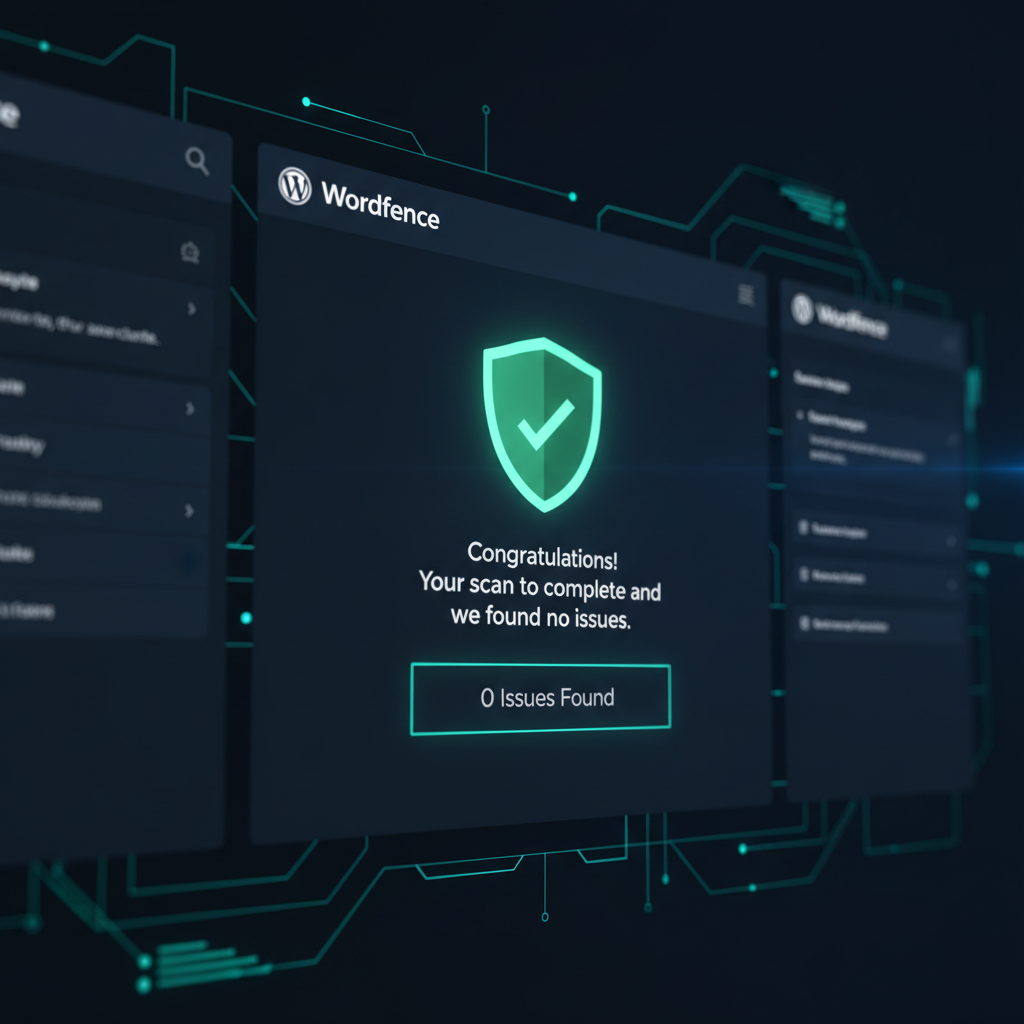
When to Call a Professional for Malware Removal
While this guide provides a comprehensive DIY path, cleaning a hacked website can be a complex and stressful task. A single missed backdoor can lead to reinfection, starting the entire frustrating cycle over again. You should seriously consider hiring a service to remove malware from WordPress if:
- You are repeatedly getting reinfected. This points to a persistent backdoor or rootkit that your scans are missing.
- Your site is blacklisted by Google or other services. Getting off these blacklists requires a thorough cleanup and a specific review process.
- Your hosting provider has suspended your account. Professionals can often clean the site faster and provide a report to get your account reinstated quickly.
- The hack is complex. If you’re dealing with sophisticated database injections, server-level compromises, or conditional malware, a DIY approach is very risky.
- You lack the time or technical confidence. Your time is valuable. A professional WordPress malware removal service offers peace of mind and gets your business back online fast.
Experts like Joynal Abdin have seen thousands of variations of malware and can quickly identify and eliminate threats that might take a novice days to find, if at all.
Frequently Asked Questions
Can’t I just restore a clean backup to remove the malware?
Restoring a backup can work, but only if you’re certain the backup is 100% clean and you have fixed the vulnerability that led to the hack. If you restore a backup without patching the entry point (e.g., an outdated plugin), the site will simply be hacked again. Furthermore, any content, sales, or user registrations since that backup was made will be lost.
How much does it cost to remove malware from WordPress?
The cost varies. Basic cleanups from some services might start around $150, while complex infections requiring forensic analysis can cost $500 or more. At MalwareRemoveExpert.net, we offer a flat-rate, comprehensive cleanup service that includes site hardening and a 30-day guarantee for a very competitive price, ensuring no surprise fees.
Will Google penalize my site for being hacked?
Yes. If Google’s crawlers detect malware, they will add a warning like “This site may harm your computer” to your search results and may de-index your pages. This is known as being blacklisted. After the site is cleaned, you must submit a reconsideration request through Google Search Console to have the warning removed.
How did my WordPress site get malware in the first place?
The most common ways WordPress sites are compromised are through vulnerabilities in outdated plugins or themes, weak passwords, insecure hosting environments, or users downloading pirated (nulled) premium plugins/themes, which almost always come bundled with malware.
Need Expert Help to Remove Malware From WordPress?
Going through these steps can be daunting, especially when your business is on the line. If you want guaranteed results and peace of mind, let our experts handle it.
We will completely remove malware from your WordPress site in under 24 hours, guaranteed.
- Guaranteed 24-Hour Turnaround: We get your site back online fast.
- 30-Day Post-Cleanup Guarantee: If the site gets reinfected, we’ll clean it again for free.
- Top-Rated Expertise: Founder Joynal Abdin holds a 4.9★ rating with 100+ positive verified client reviews for exceptional service.
Get a Free Quote Now View Our Service with clients worldwide